Import your CAD geometry into CENOS
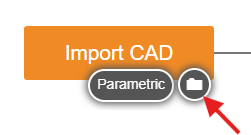
The Import CAD approach is useful when you have already created a CAD file of your RF model. Simply click on the folder icon, select your CAD file, and it will be automatically imported in CENOS, where you will be able to validate it!
Supported Formats
CENOS currently supports differents formats:
- CAD files – .step, .stp, .iges, .igs.
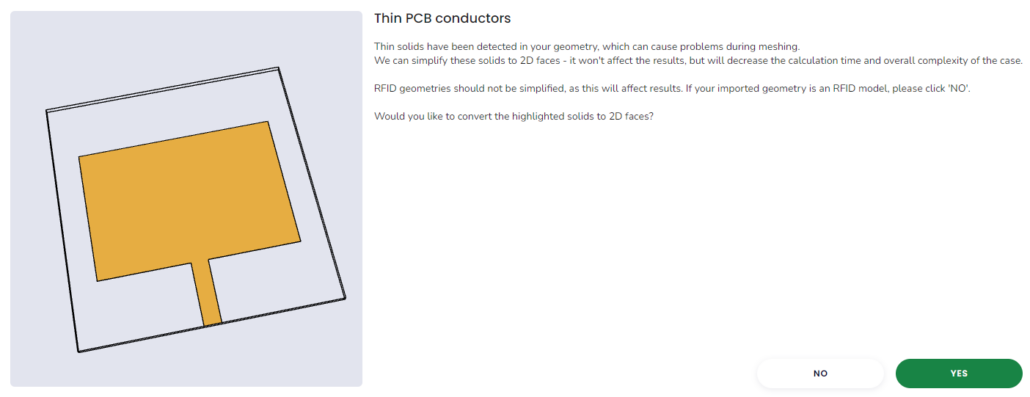
Thin PCB conductor flattening
In RF models it is usual to find conductive parts with a very small thickness. When using the Import CAD approach you will find the option to flatten these conductive objects (with a thickness of 50um or less) or keep them as 3D volumes. This feature will appear once you upload your CAD files.
One of the big advantages of selecting YES for this option is that it will decrease the chances of having problems with the mesh of the model and it will also decrease the computation time! Remember that working with 2D Faces instead of solids when dealing with very thin surfaces will not affect the results significantly and will save you time in the simulation process!
Air Domain generation
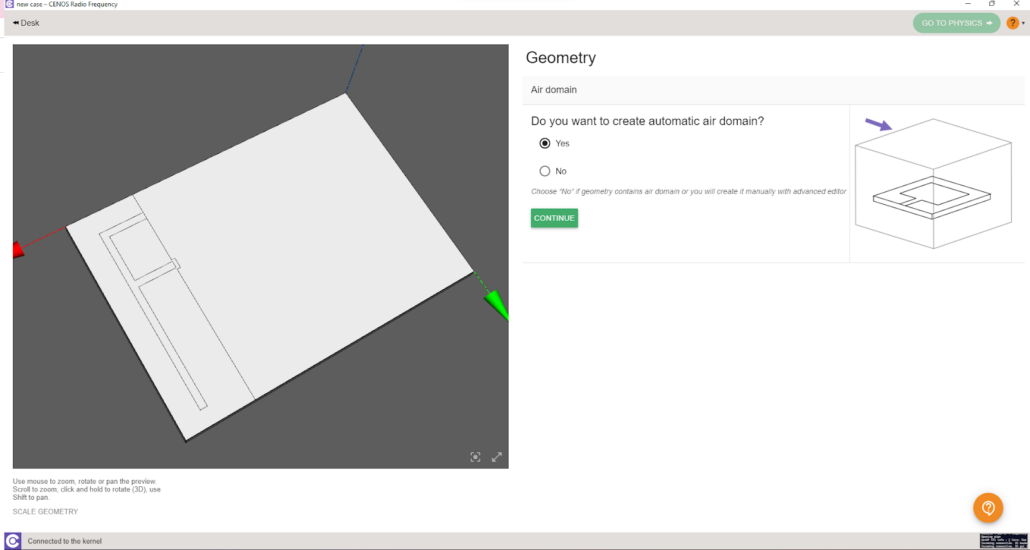
The air domain is needed for the calculations and its size can directly affect the simulation results. You will have the option to have the air box created automatically by CENOS or you can create it manually in your own CAD software and then import the CAD file along with your RF model.
CAD reloading
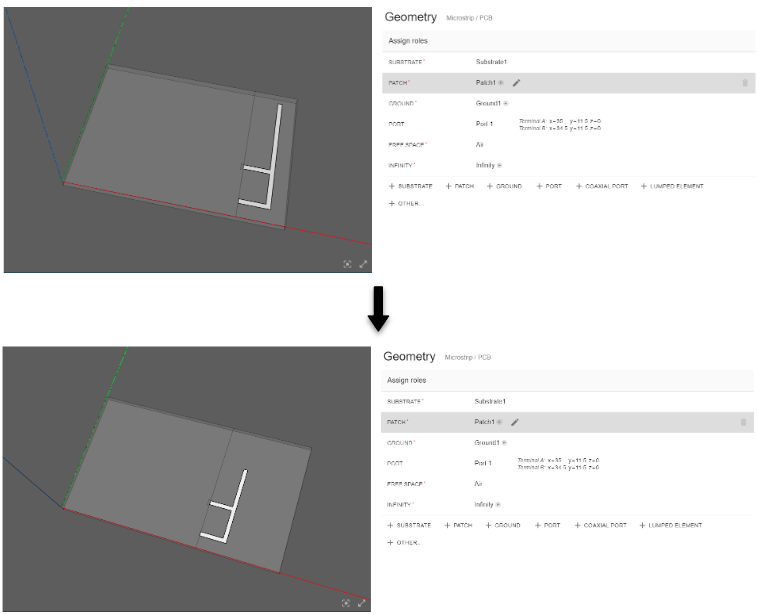
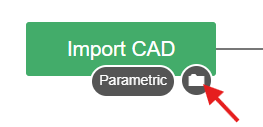
In simulations, we often have to make modifications to the geometry dimensions to obtain the most suitable result for our project. You can create your RF model with different dimensions with your favorite CAD software and load the modified geometries into CENOS while keeping all settings! To do this you just need to go back to the main CENOS RF screen and click on the folder icon that appears in the From CAD box.
You need to choose whether to overwrite the existing results or save it as a new case. In the first option the results you have previously obtained will be lost and only the new calculations generated will be saved; with the second option a new folder containing the new results will be created, so you will have two totally independent cases.
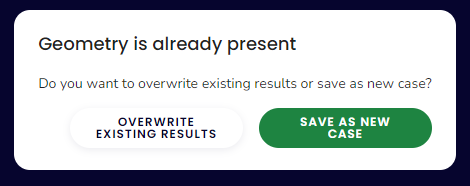
With any option you choose, the new geometry will be loaded and all the parameters will already be set, so you can click RUN directly to continue with the simulation!