CAD Geometry with Python
CENOS RF lets you create geometry directly using Python. Instead of building every model manually in CAD, you can describe the geometry in code and keep the main dimensions as parameters you can change later.
This can be especially useful for things like patch antennas, microstrips, RFID geometries, feed lines, gaps, substrates, slots, or other features where dimensions may need to be adjusted several times.
Python CAD in CENOS RF
For this workflow, you’ll need to use pythonOCC, a Python wrapper for OpenCascade. The Python file should use the OCC.Core modules to create the geometry.
This is especially important if you use AI to generate the file. Python has several CAD libraries, so simply asking for “a CAD model in Python” may give you code that uses a different library and will not work with this workflow.
What should you describe in the Python file?
A clear description makes it easier to create a useful geometry. For an RF model, include details such as:
- substrate dimensions and thickness;
- patch or conductor dimensions;
- trace width;
- feed dimensions;
- gaps and spacing;
- slots or cutouts;
- symmetry or repeated features;
- and any dimensions you would like to keep adjustable.
Keep dimensions you expect to change as parameters. You can then reuse the same Python file for different versions of the geometry instead of rebuilding the model each time.
Using AI to create the Python CAD file
AI tools such as ChatGPT, Claude, or Gemini can help you create or modify these files. Just make sure you describe the geometry you want and specify the CAD library the code needs to use.
For example, instead of asking:
A more detailed request is much more useful:
For more complex models, you can also provide a sketch, exact dimensions, symmetry information, or an existing Python CAD file as a reference.
You don’t need to explain how to write every line of Python. Describe the geometry you need, specify the correct CAD library, and use the generated file as a starting point.
For better results you can even give the link to this article and attach the example file.
Examples
Let’s look at two examples of how this works.
We’ll start with a simple parameterized model and then move to a more detailed geometry. The basic process stays the same: describe the geometry, specify pythonOCC/OpenCascade, generate the file, and load it in CENOS RF.
Example 1: Simple parameterized patch antenna
For the first example, we’ll create a patch antenna with a dielectric substrate, a rectangular conductive patch, and a feed line.
For this example, we want:
- Substrate: 40 × 50 × 1.6 mm
- Patch: 28 × 22 mm
- Feed width: 3 mm
- Feed length: 14 mm
We’ll keep the main dimensions adjustable so we can modify the antenna later without rebuilding it.
A prompt for this geometry could look like this:
You can then load the generated Python file into CENOS RF. In this example, the file created the expected substrate, patch, and feed geometry without any additional CAD work.
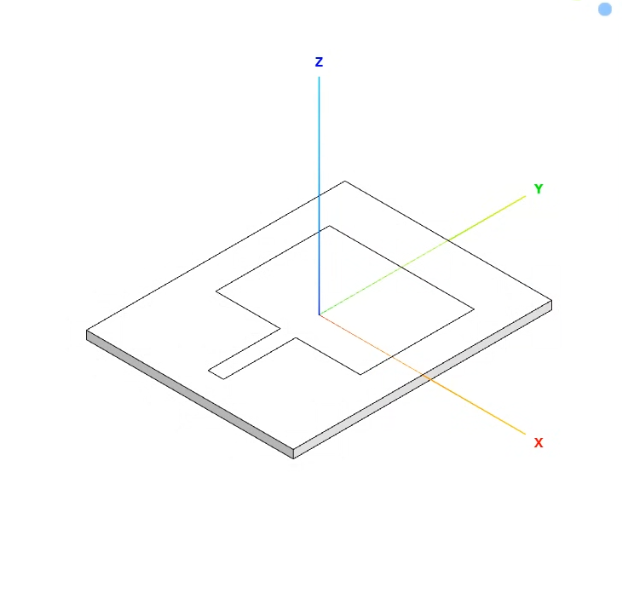
The specific dimensions aren’t really the point here. What matters is that we can describe the geometry, generate it using Python, and adjust its dimensions later.
Example 2: Parameterized RFID geometry
For the second example, let’s use an RFID geometry with a dielectric substrate and a custom conductive pattern.
This model has more parameters and a more complex contour. We can adjust the substrate dimensions, patch size, trace width, feed dimensions, gap, spacing, and other antenna dimensions.
Unlike the first example, the conductive pattern isn’t just a simple rectangle. One half of the contour is defined by a list of points, and the other half is created by mirroring it across the x = 0 plane.
For a shape like this, the overall size isn’t enough. We also need details such as trace width, feed dimensions, segment lengths, spacing, and symmetry.
A prompt for this kind of geometry could look like this:
The file combines the conductive pattern and substrate into the final OpenCascade geometry returned by the function.
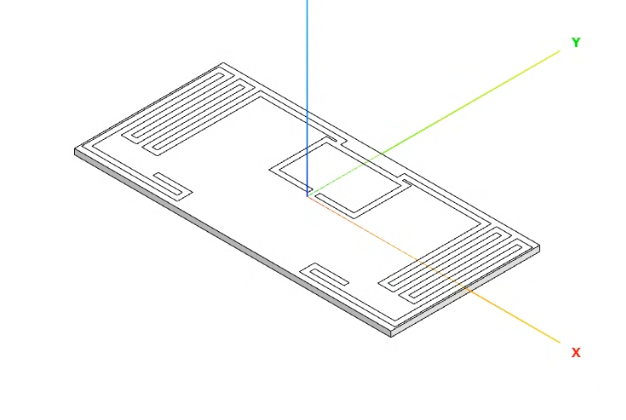
This example shows how the same approach can save time when creating or modifying more complex geometries.
In short
Python CAD is another way to create RF geometry when you can describe the model using dimensions and geometric relationships. Here’s the basic workflow:
- Define what kind of RF geometry you want to create.
- Describe the important dimensions and relationships between the different parts.
- Use pythonOCC/OpenCascade with the OCC.Core modules.
- Keep the dimensions you may want to change later as parameters.
- If you use AI, make sure to specify the CAD library and give it enough information about the geometry.
Once your Python geometry is ready, you can use it as the starting point for the rest of your simulation in CENOS RF.
Loading the geometry in CENOS RF
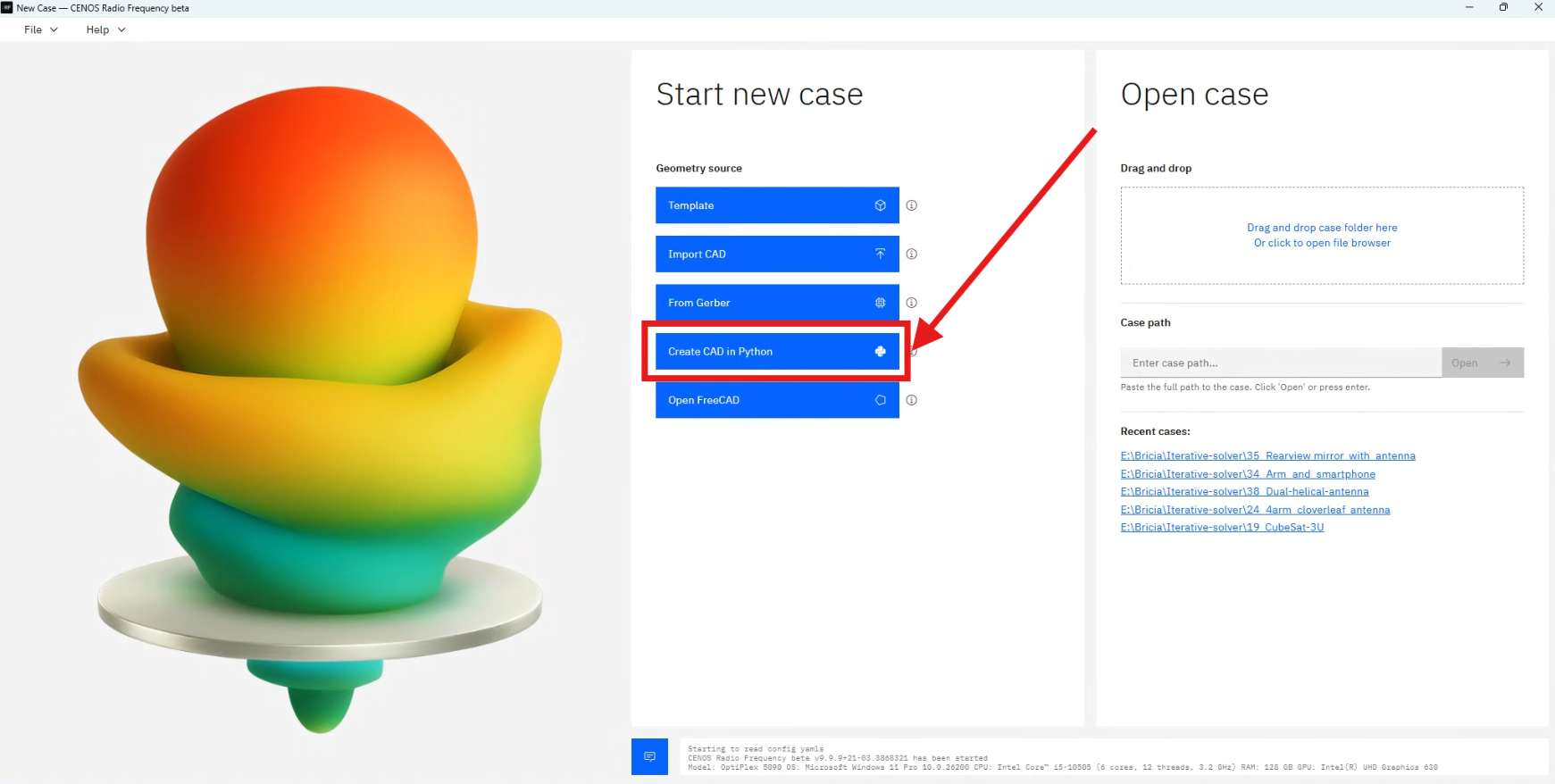
When your Python file is ready, start a new case in CENOS RF and select “Create CAD in Python”. From there, follow the Python CAD workflow to use your geometry as the starting point for the simulation.