
CENOS Python package
The CENOS Python API provides a streamlined programmatic interface to the CENOS backend, allowing you to bypass manual UI tasks and build custom, automated workflows. From running complex parametric studies and optimization loops to extracting data for tailored reports, the package seamlessly integrates CENOS into your existing Python toolchain.
Quick-start
To use this package you will need:
- Python (> v3.10)
- CENOS simulation software installed
- Text editor for scripting
Once you have installed Python, you need to install CENOS pyAPI package using Windows PowerShell in the folder of your choice:
irm https://cenos-bucket.fra1.cdn.digitaloceanspaces.com/install-cenos-py-examples.ps1 | iex
For text editor you can use whatever you prefer. Text editor like Visual Studio is a nice, open source and free option if you don’t have an installed editor yet!
How it works
While you use CENOS normally using the GUI, most of your actions are written out to a python_trace_script.py file inside of the case itself (you can open your case directory from CENOS through File -> Show case in file explorer).
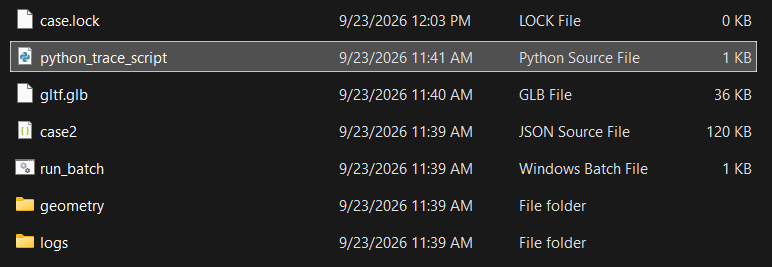
It will look something like this:
import cenos_py

case = cenos_py.CenosCaseIH()

case = CenosCase("INDUCTION")
case.set_pre_processor('geomWizard', load_recent=True)
case.update_template_shape_type(1, 'workpieceTube')
case.update_template_property(1, 'diameter3', 32)
case.update_template_property(1, 'diameter4', 10)
case.update_tab_property('simulation', 'tend', 3)
case.update_tab_property('simulation', 'isAdaptive', True)
case.assign_group_material('workpiece', 'alloy_34Cr4')
case.update_physics_property('physicsThermal', 'boundary', 'workpiece_surface', 'hr', 0.9)
case.entered_meshing_window()
case.set_meshing_global_density('rough')
case.set_meshing_grading_surface(0.29)
case.set_meshing_domain_element_size('workpiece', 2)
case.set_meshing_domain_skin_layer('workpiece', True, 4.6, 10, 1.4)
case.generate_mesh()
case.calculate()
You can make a copy of this trace file and use it for your scripts. This trace file is also the best reference for the API: if you’re not sure which function to call to change something, make that change once in the GUI and check what got added to the trace file.
These functions you can then use to modify your case via Python, without opening CENOS!
How to use it
Once you have a use case in mind, you can prepare a script to execute it. After calling all the functions you want to modify, copy the trace file and set up your script.
Let’s look at two ways to run a case with different parameters.
Option 1: Build the whole case from scratch
The most obvious approach is to take the trace file and turn the parameter you care about into a variable, then repeat the whole thing in a loop:
import cenos_py

case = cenos_py.CenosCaseIH()

for i in [20, 30, 40, 50]:
    case.set_pre_processor('geomWizard', load_recent=True)
    case.update_template_shape_type(1, 'workpieceTube')
    case.update_template_property(1, 'diameter3', i)  # <-- parameter goes here
    case.update_template_property(1, 'diameter4', 10)
    case.update_tab_property('simulation', 'tend', 3)
    case.update_tab_property('simulation', 'isAdaptive', True)
    case.assign_group_material('workpiece', 'alloy_34Cr4')
    case.update_physics_property('physicsThermal', 'boundary', 'workpiece_surface', 'hr', 0.9)
    case.entered_meshing_window()
    case.set_meshing_global_density('rough')
    case.set_meshing_grading_surface(0.29)
    case.set_meshing_domain_element_size('workpiece', 2)
    case.set_meshing_domain_skin_layer('workpiece', True, 4.6, 10, 1.4)
    case.generate_mesh()
    case.calculate()
What this script will do is set up a Template case with the defined parameters and run a parametric study for the Tube diameter. With this script you will get a total of 4 calculated cases, each with its own workpiece tube diameter – 20, 30, 40 and 50 mm.
This works, but for a large case the script gets long, and it’s easy to end up repeating steps that didn’t actually need to change (like generating the mesh multiple times).
Option 2 (recommended): Open an existing case and only change what you need
Instead, you can open a case you’ve already built in the GUI, and only touch the properties you actually want to vary:
import cenos_py

case = cenos_py.CenosCaseIH()

your_case_path = r"C:\path\to\your_case"

for i in [20, 30, 40, 50]:
    case.open(your_case_path)

    # Create a copy first, so we don't overwrite the original case
    case.save_case_as(f"C:/path/to/your_case_{i}")

    case.update_template_property(1, "workpiece_height", i)
    case.calculate()
This is script is simpler. It opens a previously created case, makes a copy of that case, changes the tube diameter and runs the new case. This is done in a loop until all 4 cases are finished.
This is the recommended approach: shorter scripts, and no wasted steps.
It also makes the base case easy to keep up to date. If you want to make a static, non-parametric change — a different material, a physics property, swapped-out geometry — just open your_case_path in the GUI, make the change, save it, and re-run your script. There’s no need to touch the Python at all; every run will pick up the new base case automatically.
Result analysis
Using CENOS Python API you can not only control and modify different case input parameters, but also use results to get feedback on your simulation and automatically adjust input parameters. This enables you to run optimization studies of your chosen cases.
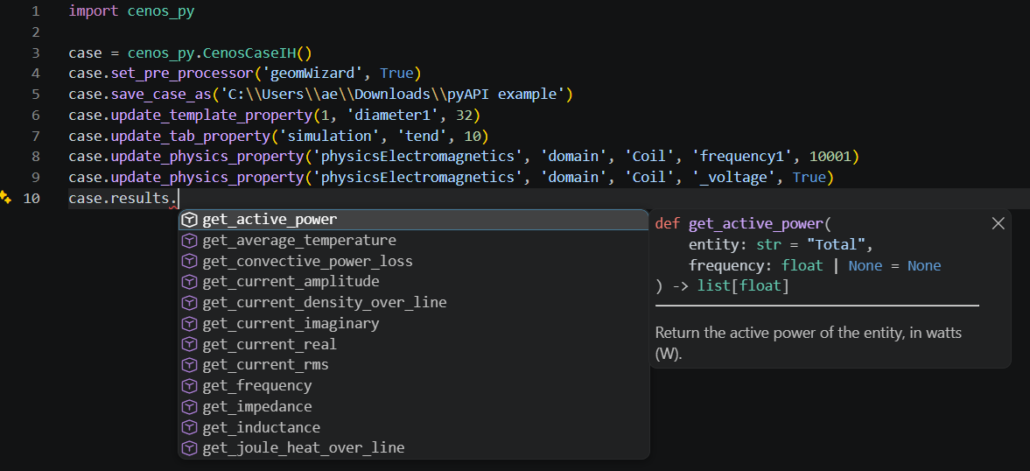
Actions performed in the CENOS GUI Result Viewer do not get written to the python trace script. Instead you can access all the results via case.results., for example:
case = cenos_py.CenosCaseIH()

case.open(r"C:\path\to\your_case")

case.results.get_active_power()
case.results.get_average_temperature("Solid1")
Each of the functions will have docstrings and argument and return type annotations, meaning if you start typing case.results. then you should see the “parameter hints”:
What if I don’t know Python?
You do not need to be a software developer to take advantage of these automation features. If you are unfamiliar with Python, you can easily use modern AI tools like ChatGPT, Gemini or Claude to do the heavy lifting for you. Simply provide the AI with a link to this CENOS API documentation, upload the trace file you want to modify, and describe what you want to achieve. The AI can act as your personal coding assistant, analyzing your setup and writing the exact script you need—allowing you to automate workflows and run complex studies without writing a single line of code yourself!