
Shrink fitting of a tool holder
Induction shrink fitting relies on thermal expansion to achieve very tight interference fits for high-precision tooling. In tool holder assemblies, achieving the necessary radial clearance to insert or extract a cutting tool requires precise electromagnetic power delivery.
By integrating mechanical stress and strain dynamics directly into the electromagnetic-thermal simulation loop, engineers can evaluate structural integrity alongside thermal expansion before physical testing.
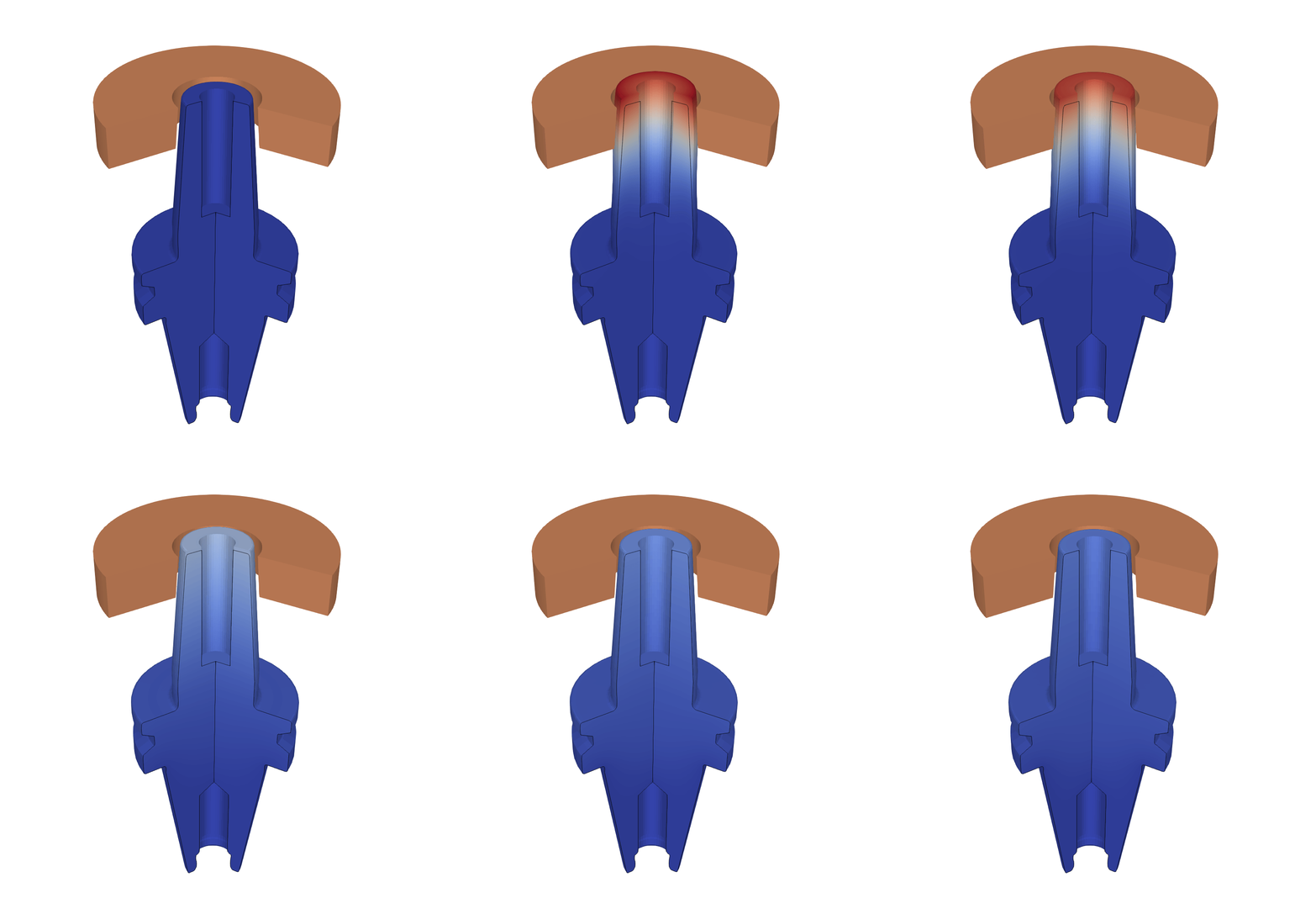
1. Prepare your geometry
Geometry is the beginning and a cornerstone of every simulation, so we need to start by preparing our geometry for the simulation.
1.1 Import CAD files
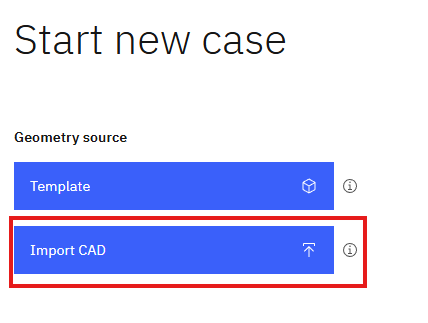
First we need to select the geometry creation approach. In CENOS home window click Import CAD.
Click the blinking Folder icon to select the CAD files you want to import.
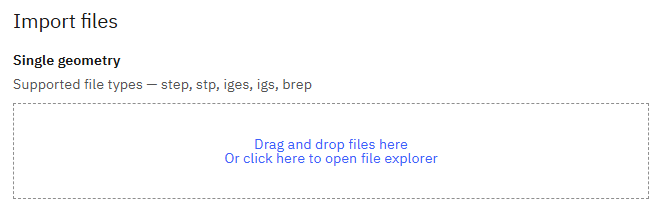
Select STEP files of your system and click Open to import them into CENOS.
1.2 Generate air box
Once the CAD files are uploaded, CENOS will ask if you want to automatically generate the air box (ambient environment around your system). Click No on the choice, and then CONTINUE.
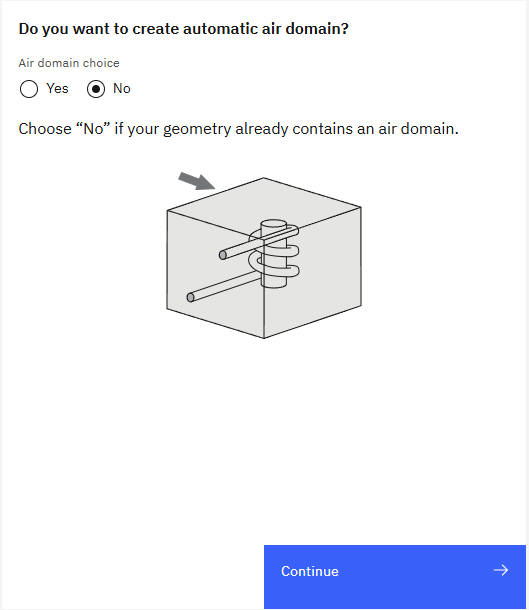
This example is for a 2D case, but the steps stay the same for 3D cases as well, with the distinction that any edges mentioned would become faces, and any faces would become solids.
2D cases should have the air box already present in the CAD file. To read more about setting up 2D cases, please visit our article.
1.3 Define groups
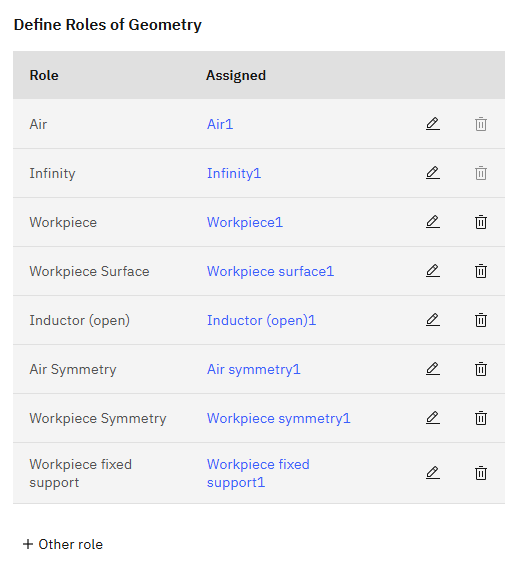
Next, you will be redirected to group creation window. Here you will see a list of groups you need to define for your system, such as which one is workpiece, inductor etc.
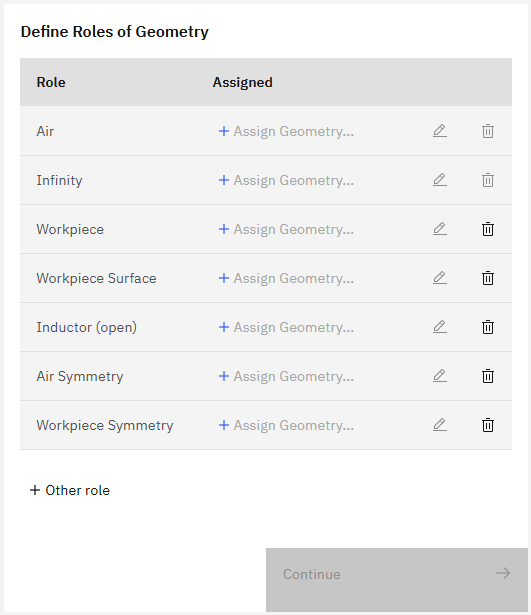
You should assign all of the geometry roles as usual (you can refer to the article about 2D case setup for more detailed information about assigning symmetries etc.).
However, since this case will have mecanical stresses, we need to create a separate group.
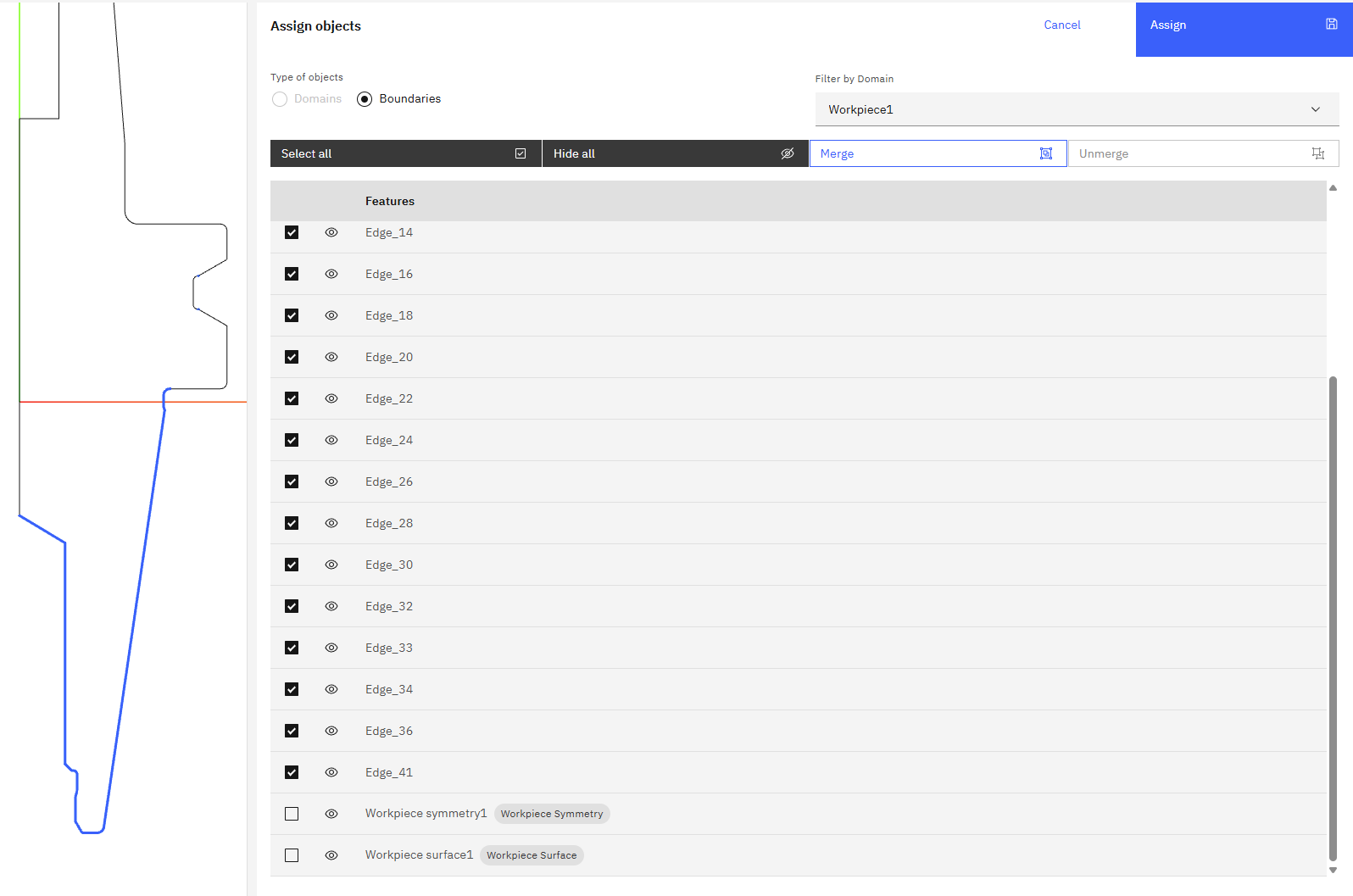
This group will refer to the fixed part of the workpiece, in other words, the part that will not have any deformations and will stay the same throughout the whole simulation process.
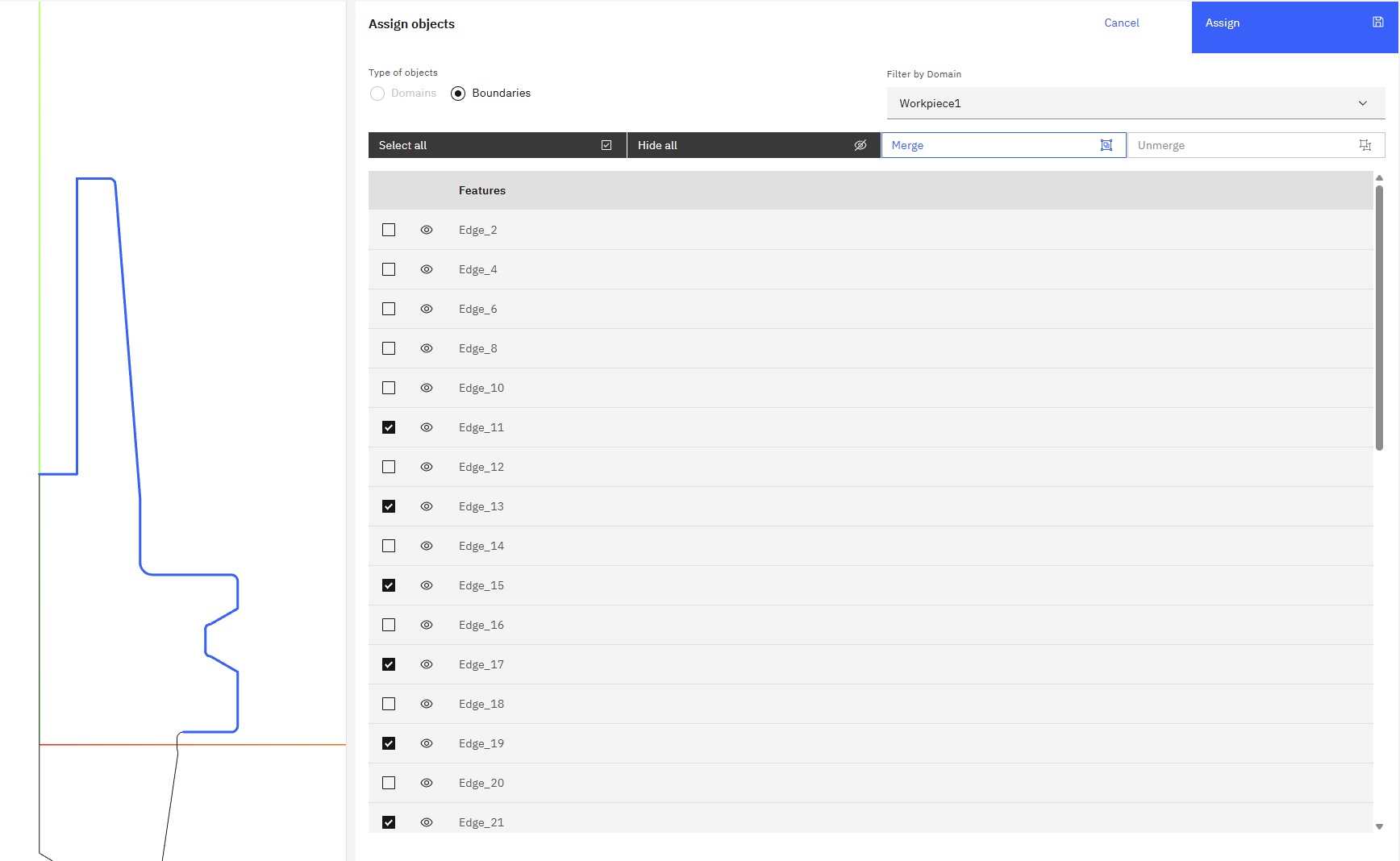
So here, for workpiece surface, you should make sure to select only the edges that will have the deformation:
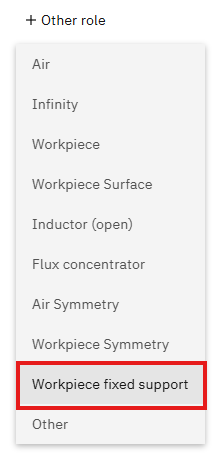
After that, go to the dropdown menu Other role and select the role Workpiece fixed support:
And then select the edges that represent the part of the workpiece that will have no deformations:
With this, all of the roles have been set and we can move onto the Physics section.
2. Define physics
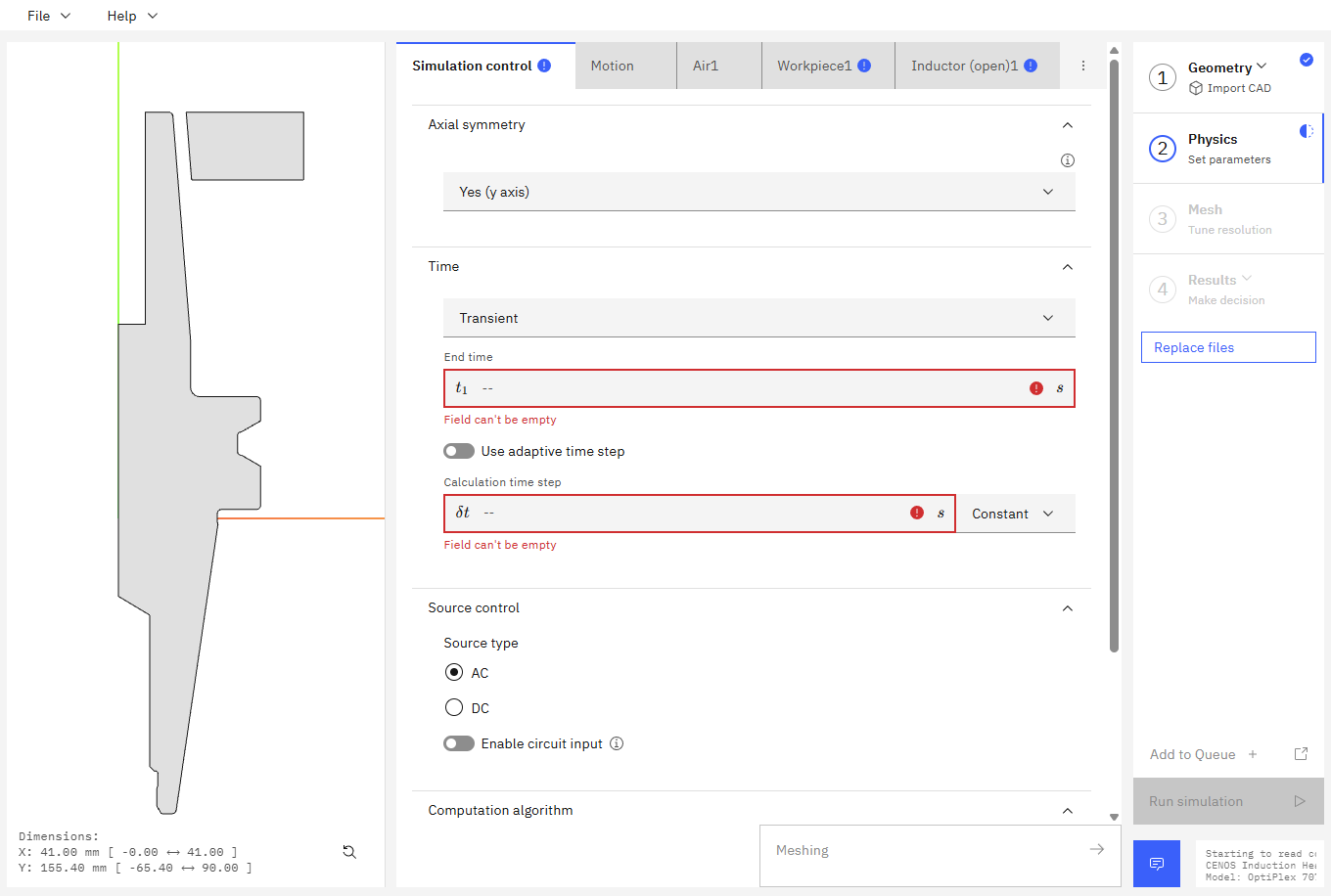
You will be redirected to the Physics window, where physical definitions are present. On the left you can see the preview window of your geometry, but on the right – the actual physical definitions. You can navigate physics through the domain tabs above the physical definitions.
2.1 Enable Mechanics
To be able to analyse the deformation in results, you need to enable mechanics.
To do this, go to the workpiece tab and open the Domain analysis settings on the top of the tab.
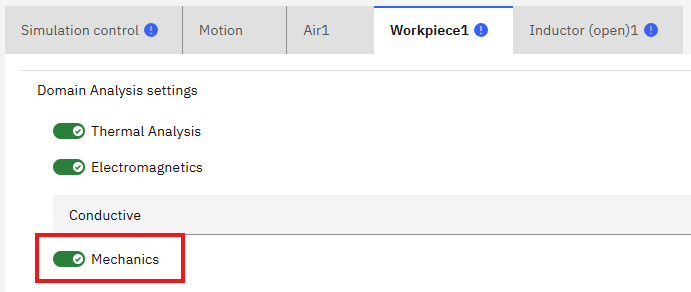
There, toggle the Mechanics button to enable it.
This will open an extra section under Thermal Analysis and Electromagnetics, called Mechanics.
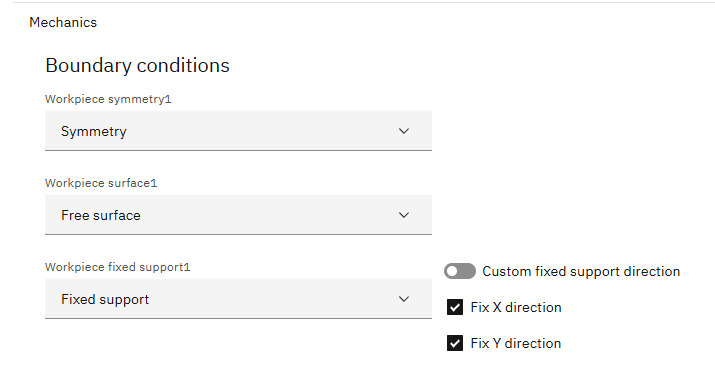
You will see the section automatically filled by CENOS. You can change the selected fixed directions, as well as input a custom fixed support direction, it that is necessary.
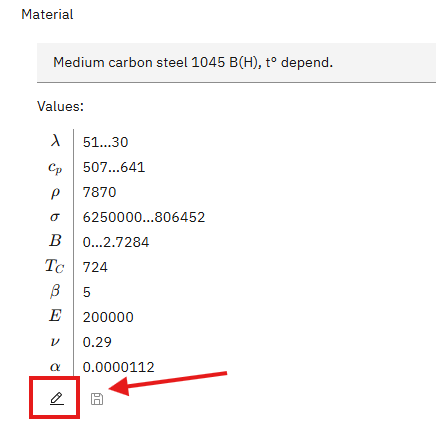
Once the Mechanics have been enabled, you will notice that the material has some extra properties visible.
If you click on the edit button, you can see in more depth what those properties are:
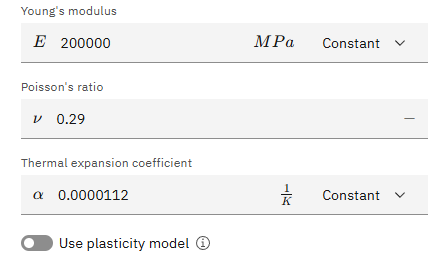
The new properties include the Young’s modulus, Poisson’s ratio and Thermal expansion coefficient.
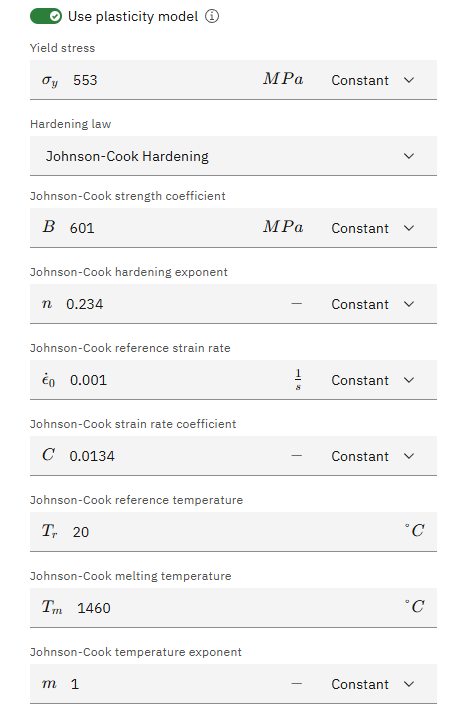
You can also enable the use of plasticity model, that will let you observe how the material will behave plastically if the stress exceeds yield stress.
2.2 Input physics parameters
For all tabs where you can see the blue dots with exclamation marks, you should input the necessary physics parameters, such as the end time, time step, materials, frequency and input for the inductor.
This part does not require any additional steps – just the usual case setup.
3. Evaluate results
In the end of the calculation our post-processing results viewer will automatically open with a pre-set temperature state, and you will be able to see the temperature field distribution in the workpiece in the last time step.
In the mechanics cases, some additional results will be available.
You can view the Stress, Von Mises Stress and Displacement in the workpiece, as well as use Deformation filter to visually see the actual deformations.